
Mobile Help
Add Our Site to Your Home Screen
Save Dentalfone to your phone’s home screen and it opens with one tap, just like an app. There’s nothing to download from an app store.
iPhone and iPad (Safari)
- Open this site in Safari.
- Tap the page menu button (☰) at the left of the web address. On older versions of iOS, tap the Share button (a square with an arrow) instead and go to step 4.
- Tap Share.
- Tap View More, then tap Add to Home Screen. If you don’t see it, tap Edit Actions at the bottom and add it.
- Leave Open as Web App on and tap Add. You can change the name first if you like.
- The icon appears on your Home Screen. Tap it to open the site.
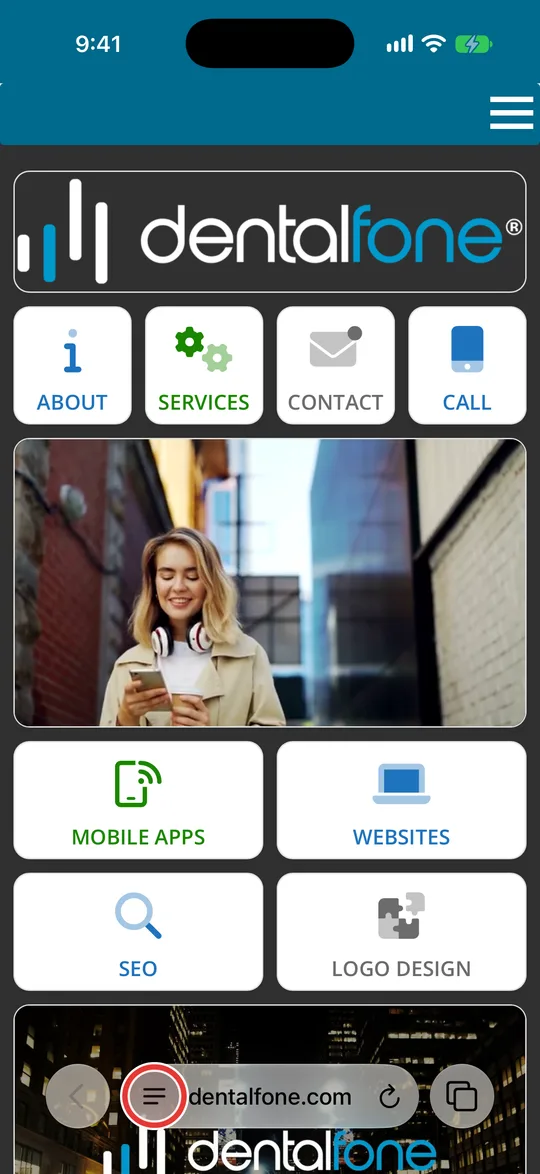
1. Tap the page menu 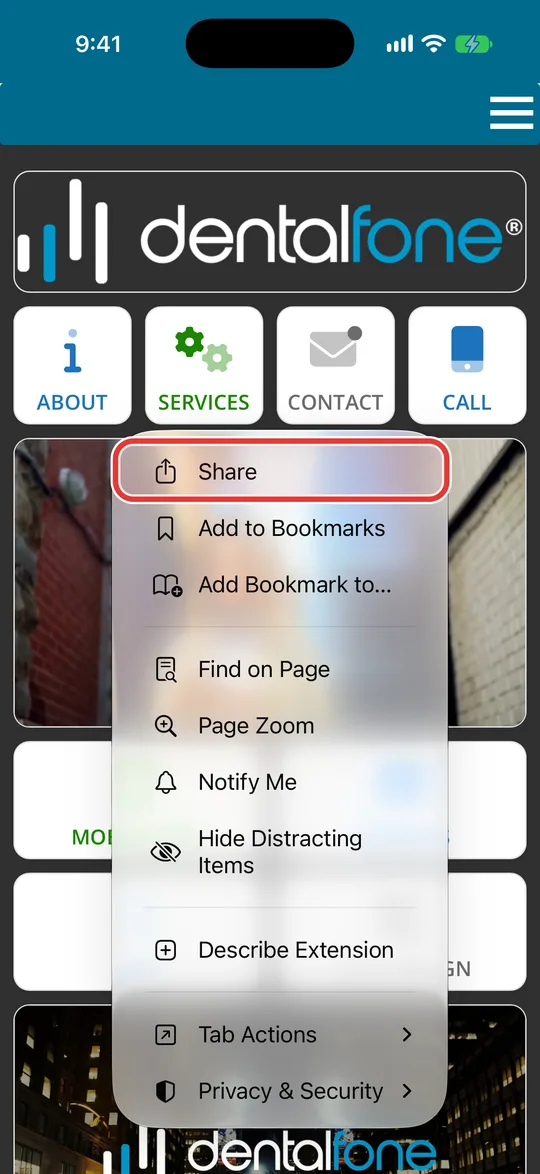
2. Tap Share 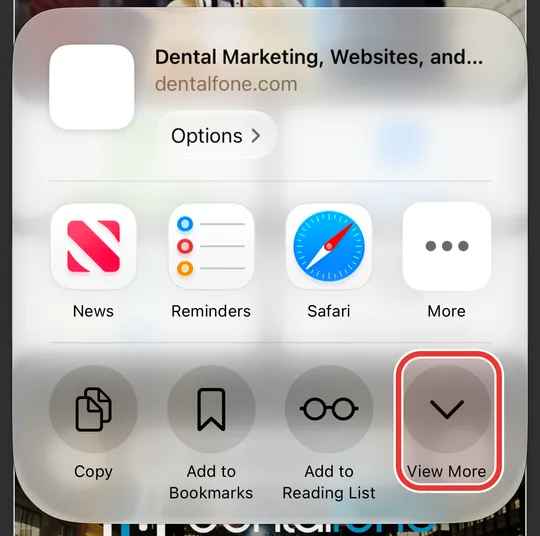
3. Tap View More 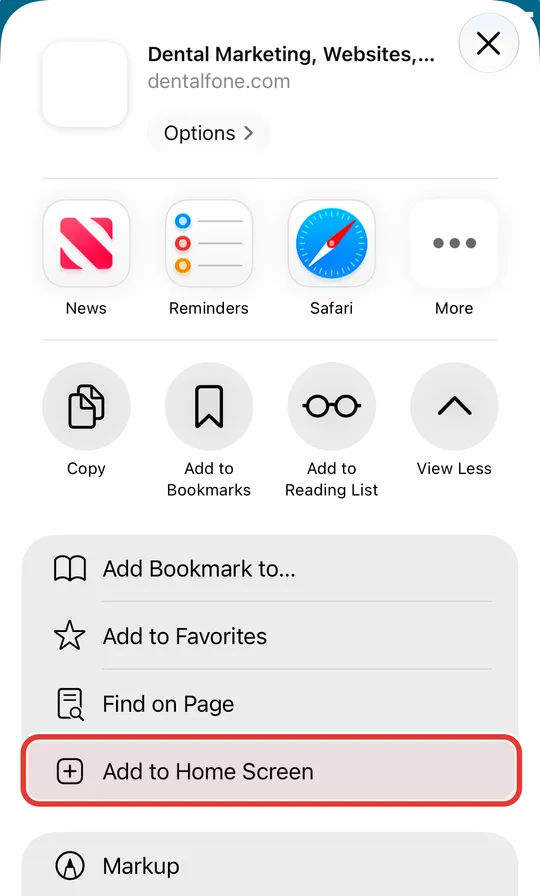
4. Tap Add to Home Screen 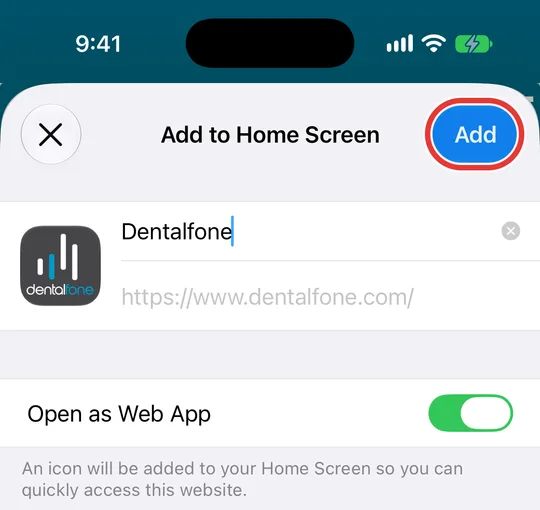
5. Tap Add 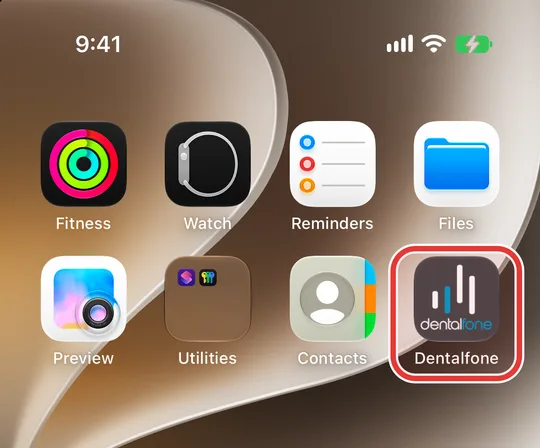
6. Your new icon
Using Chrome, Edge or Firefox on an iPhone? Tap the Share button in that browser, then Add to Home Screen.
Android (Chrome)
- Open this site in Chrome.
- Tap the menu button (⋮) at the top right.
- Tap Add to Home screen. On some phones it says Install app, or asks you to choose Install or Create shortcut; either works.
- Check the name and tap Add. If your phone asks, tap Add automatically or drag the icon where you want it.
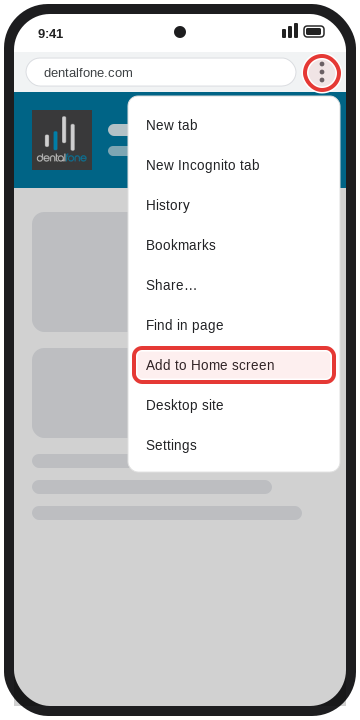
Tap ⋮, then Add to Home screen 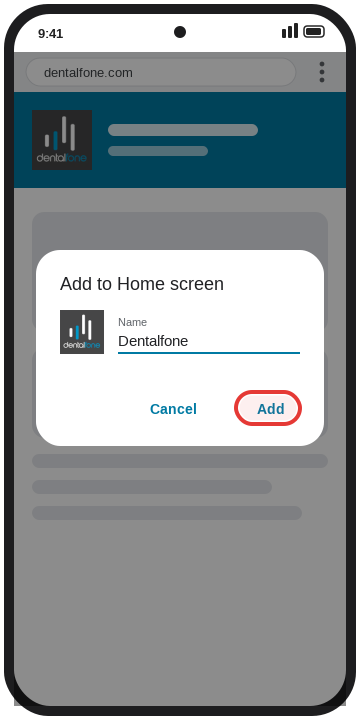
Tap Add
Samsung Galaxy (Samsung Internet)
- Open this site in Samsung Internet.
- Tap the menu button (☰) at the bottom right.
- Tap Add page to.
- Tap Home screen, then tap Add.
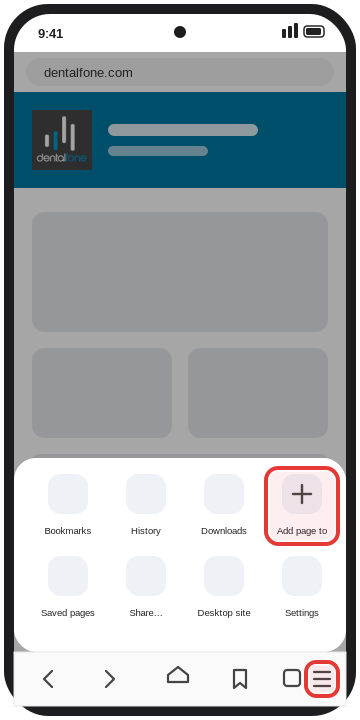
Tap ☰, then Add page to 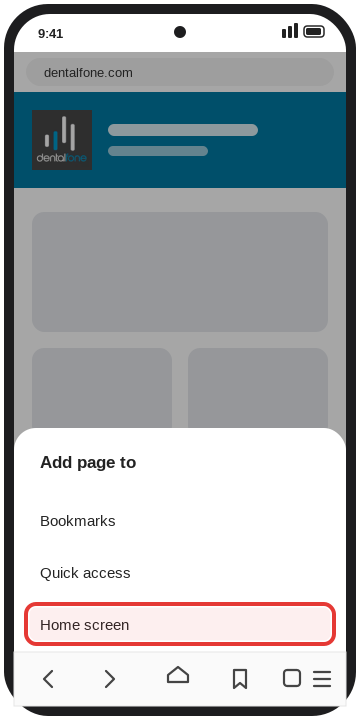
Tap Home screen
The Android pictures are illustrations. Menus can look a little different depending on your phone and browser version.
Scanning Our QR Code
You don’t need a separate app to scan a QR code:
- iPhone: open the Camera app and point it at the code. Tap the link that appears.
- Android: open the Camera app and point it at the code, or use Google Lens (the camera icon in the Google search bar). Tap the link that appears.
Call Dentalfone at 855-385-3663 or click here to request a free demo to learn more about our services.